83% of phone storage issues blamed on two main causes — here’s how to fix them
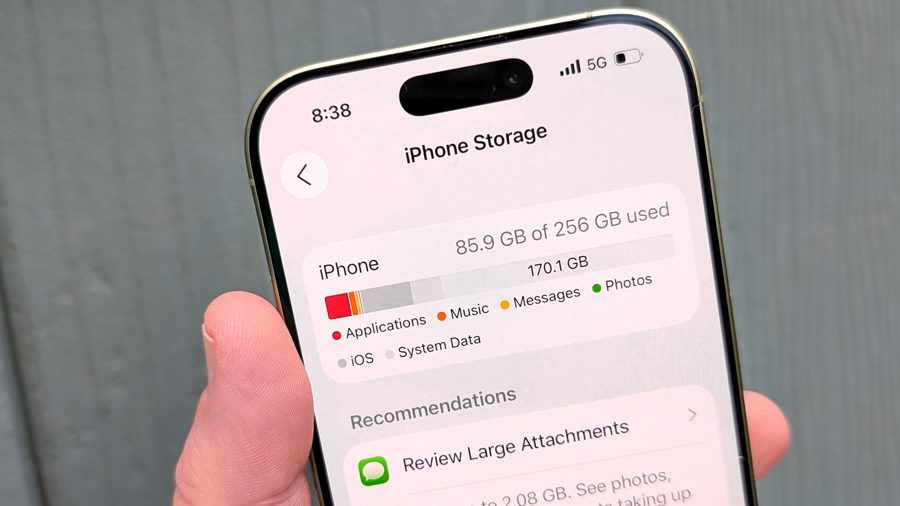
The dreaded "Storage Almost Full" warning on smartphones is most often caused by just two factors: accumulated photos and hidden app cache, according to a recent poll of Tom's Guide readers. The survey revealed that 42% of respondents blame thousands of photos they refuse to delete, while an almost identical 41% lose space to background app cache. The remaining storage is consumed by forgotten downloads and old games.
To solve this problem, you don't need to buy a new phone with extra gigabytes. Instead, you just need to tackle four storage traps in order.
The first and most impactful step is optimizing photos and videos — the single biggest storage drain. Both iOS and Android allow you to offload original files to the cloud while keeping lightweight previews on the device. On an iPhone, go to Settings, then Apps, tap Photos, and turn on Optimize Storage. On Android, open Google Photos, tap your profile icon, go to Photos settings, and enable Storage saver mode, which removes original files already backed up to the cloud. This can free up dozens of gigabytes without losing any memories.
The second step is clearing app cache. In the Settings menu on either platform, you can find the Storage section and see how much cache each app occupies. On Android, go to Settings Apps select a specific app tap Clear cache. On iOS, cache can only be removed by reinstalling the app, unless the developer has included a dedicated cache-clearing option within the app's own settings. Some apps like Safari allow you to clear cache directly from the browser settings.
The third step is checking the Downloads folder and deleting old files that may have accumulated over months of use. Many users forget about PDFs, installation files, or media received through messaging apps that are stored locally. On Android, you can use the Files app to find and remove large or old files. On iPhone, the Files app serves a similar purpose.
The fourth step is uninstalling unused games and apps, especially those that take up several gigabytes. Games with high-quality graphics often consume 2–5 GB each, and deleting just a few can reclaim significant space. You can review your app list in the storage settings and remove anything you haven't used in the past month.
By following these four steps in order, most users can resolve the "Storage Almost Full" warning without deleting personal photos or videos, and without upgrading to a new device.