ShareX: how to stop saving screenshots locally and record video with audio
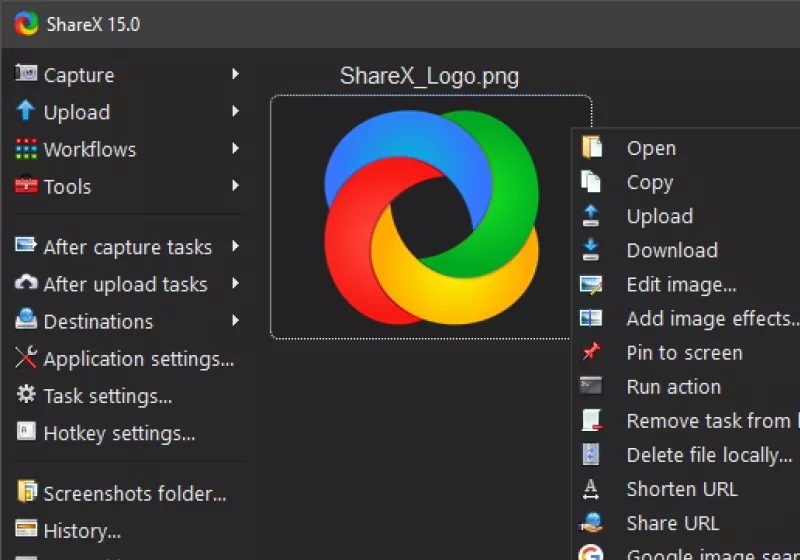
ShareX, a free and open source program, lets you capture or record any area of your screen and share it with a single key press. The tool also supports uploading images, text files, and other data to a wide range of destinations that users can select.
To prevent the app from keeping a local copy after uploading a screenshot, go to the after-capture tasks menu and uncheck the "Save image to file" option. This way the file is uploaded but not stored on the device.
For a scrolling capture, choose "Scrolling capture" from the Capture menu. After you define the area, ShareX automatically scrolls through the content and stitches the frames into a single image. This is handy for web pages, chat logs, or documents that extend beyond one screen.
Missing audio in recordings usually comes from an incorrect audio input setting or antivirus interference with FFmpeg, the component ShareX uses for video processing. Check that the right microphone or system audio is selected in the recording options, and add FFmpeg to your antivirus exceptions.
The Steam version of ShareX differs from the standalone build only in how updates are delivered: the former uses Steam's auto-update, while the latter manages updates on its own. Feature-wise, both versions are identical.
Alternatives include Monosnap, available on Windows and macOS with cloud storage, the lightweight Windows-only ScreenshotX, the simple LightShot for quick captures, and Awesome Screenshot as a browser extension and desktop app. To upload images directly to an Imgur account, open the destination settings, pick Imgur under image uploaders, and authorize the account.