SIM swapping attacks: How to enable protection in Verizon, T-Mobile, and AT&T settings
SIM swapping attacks are on the rise, prompting mobile carriers to step up their defenses. In this type of fraud, a scammer transfers your phone number to a SIM card in their own device, intercepting calls and texts meant for you. This lets them capture two-factor authentication codes and take over not just your mobile account but also any other accounts relying on that authentication.
The schemes vary: a scammer might impersonate you when contacting the carrier, or bribe an employee at companies like Verizon or T-Mobile to perform the swap. The three major U.S. carriers — AT&T, T-Mobile, and Verizon — all offer tools to protect your account from such attacks, but they are often not enabled by default. The author tested the settings on all three carriers using their own devices and detailed how to turn them on.
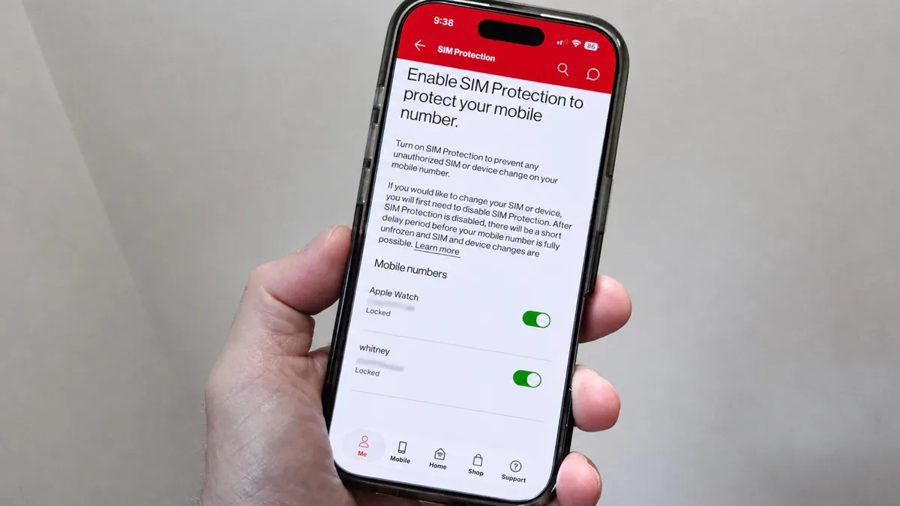
Verizon provides two safeguards. SIM Protection blocks unauthorized SIM or device changes on your phone number unless you disable the setting yourself. Number Lock prevents any unauthorized transfers of your mobile number. Both are recommended for all Verizon subscribers.
To enable SIM Protection via the website, sign in to your account, select Account, then Account overview, go to Profile and settings, scroll to the Security section, and click the SIM Protection link. Turn it on for each line in your plan and save changes. In the My Verizon app, go to the Me screen, tap Profile and settings, scroll down to Security, and enable SIM Protection for all lines.
Number Lock is activated similarly: in the Security section, select Number Lock and turn it on. The option is also available in the app's profile settings. Once enabled, any attempts to change your number or SIM will be rejected until you manually disable the protection.
T-Mobile offers SIM Protection in account settings, which prevents SIM reissue without your confirmation. To activate it, go to the profile and security section on the website or in the T-Mobile app, find SIM Protection, and toggle it on. The carrier also recommends setting a PIN for customer support calls — an extra barrier against scammers trying to impersonate you.
AT&T has a similar feature called SIM Lock, available in the security settings of your account on the website or in the myAT&T app. It blocks SIM replacement without your permission. After activation, any SIM change requests require additional verification, such as an SMS or a call to your number.
Even with these settings enabled, the risk cannot be fully eliminated — scammers constantly find new ways around protections. It's wise to use dedicated two-factor authentication apps instead of SMS and to regularly review active devices on your carrier accounts. If you notice suspicious activity, contact support immediately.